
If you're using our Spam Scanning service and your email provider is Microsoft 365, you will need to add us as a Trusted ARC Sealer, in order to preserve the chain of trust in terms of email authentication (DMARC, specifically) to prevent emails from domains with DMARC policies of "quarantine" and "reject" from being quarantined in 365 or bounced, respectively.
To do this, you will need to login to your 365 Admin Center as a global admin and go to the Security Admin Center or Microsoft Defender Portal. The direct URL is https://security.microsoft.com/.
Once you're signed in, make sure the side navigation is unhidden and follow the quick steps below.
PLEASE NOTE: The screenshots below have a black background, because Dark Mode is enabled. The background in your account could be white.
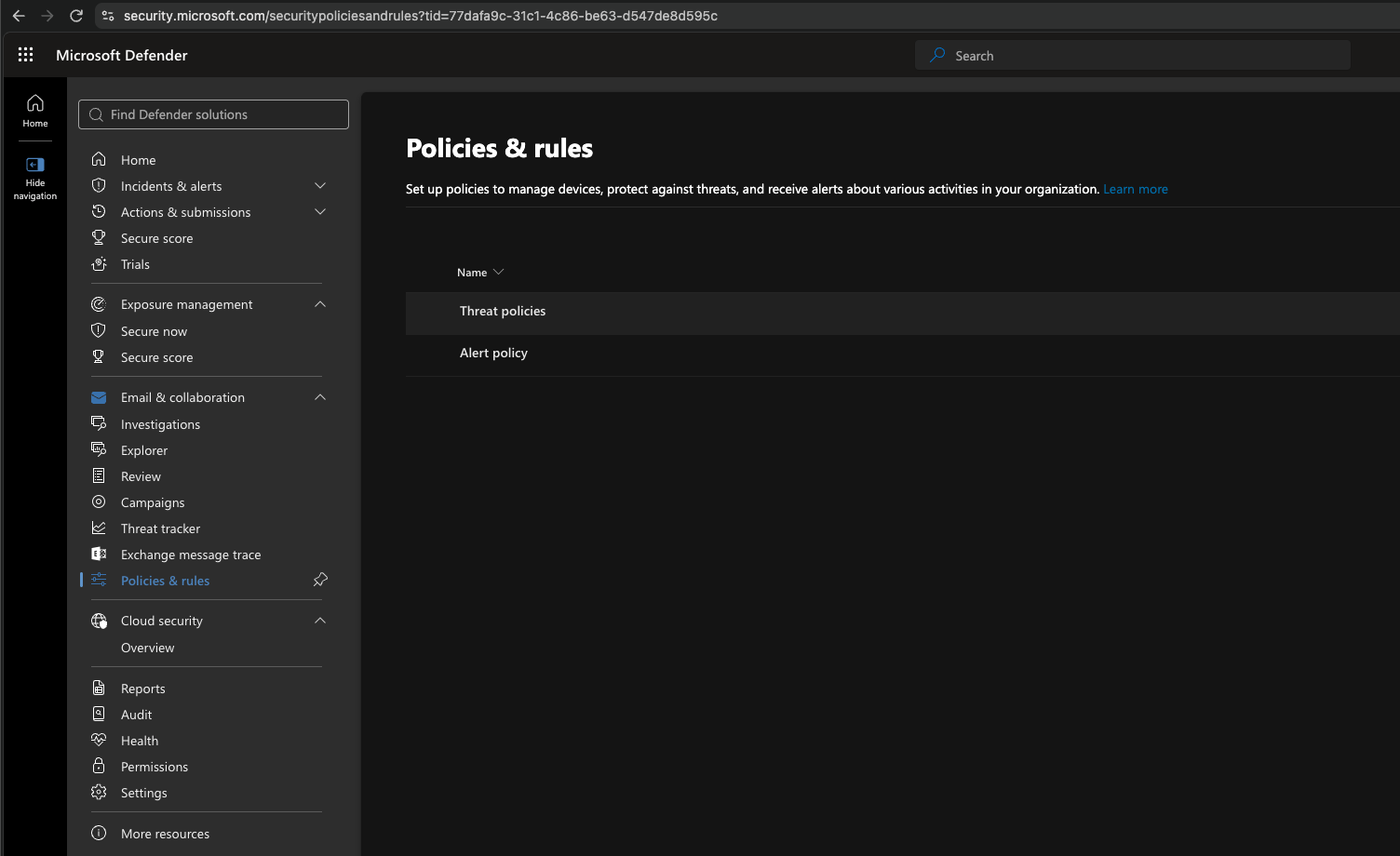
- Go to Email & collaboration > Policy & rules.
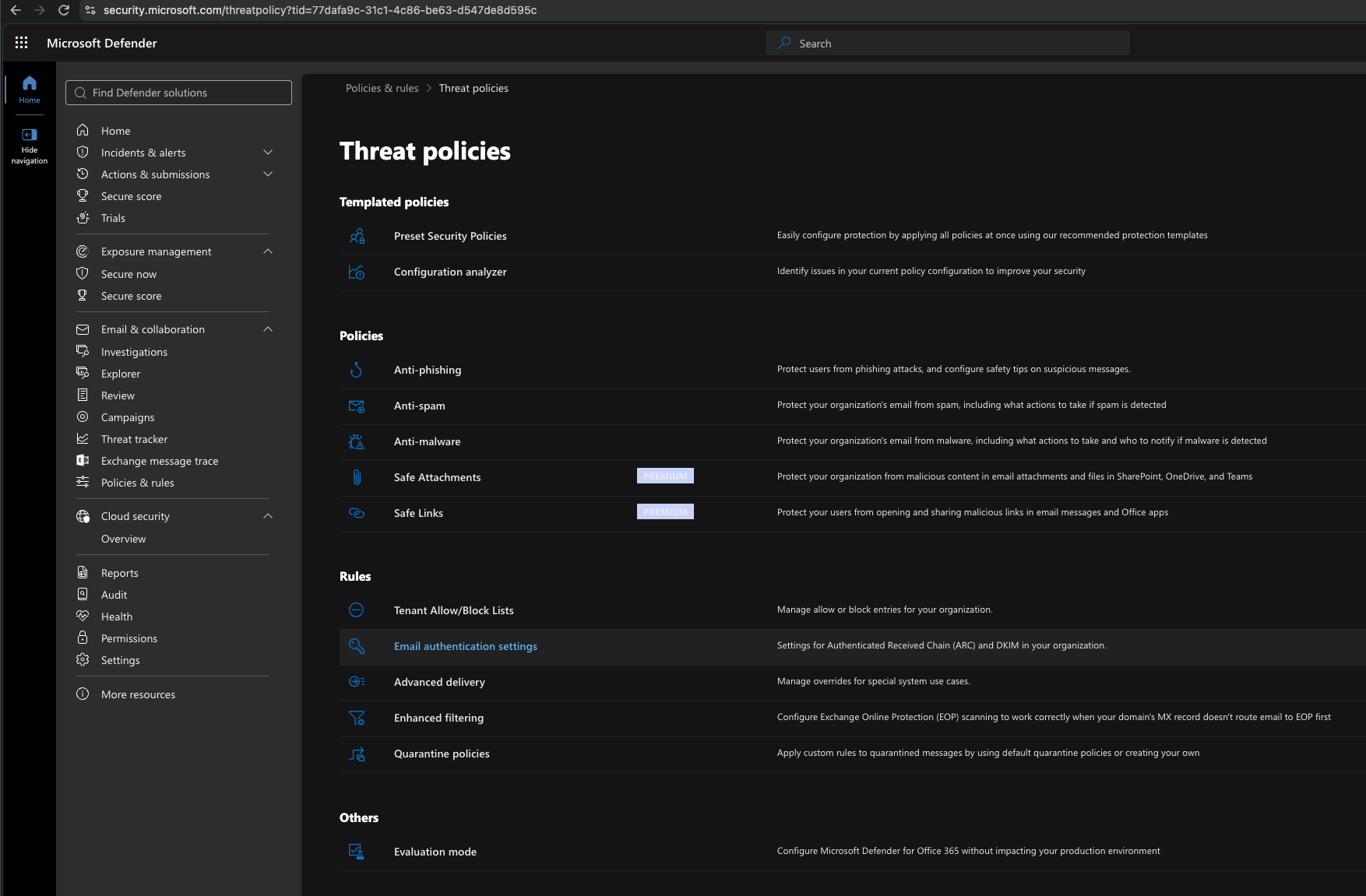
- Go into Threat policies and then under the Rules heading, click Email authentication settings.
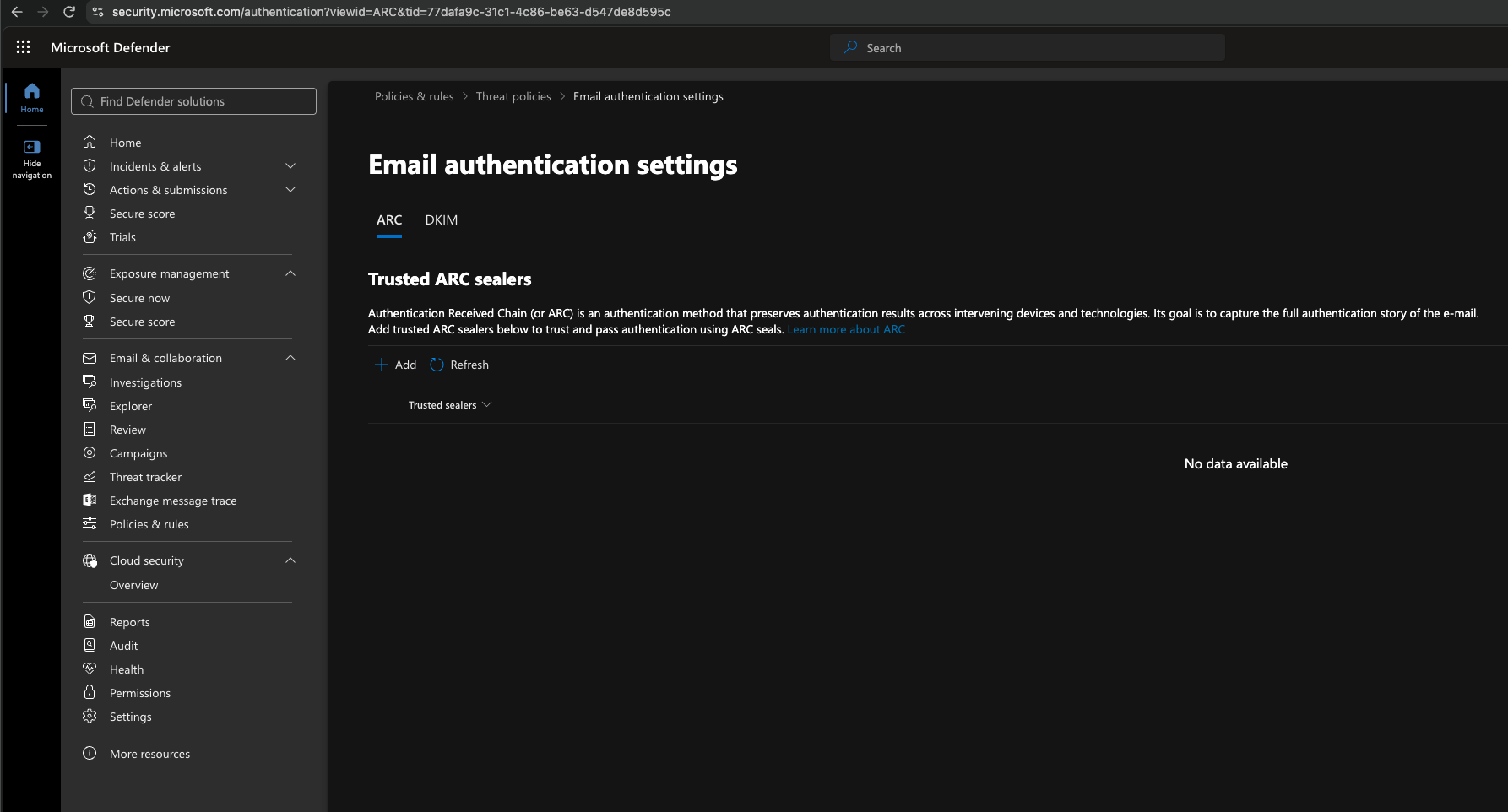
- Remaining on the ARC tab, click Add (or Edit if you already have existing Trusted Sealers).
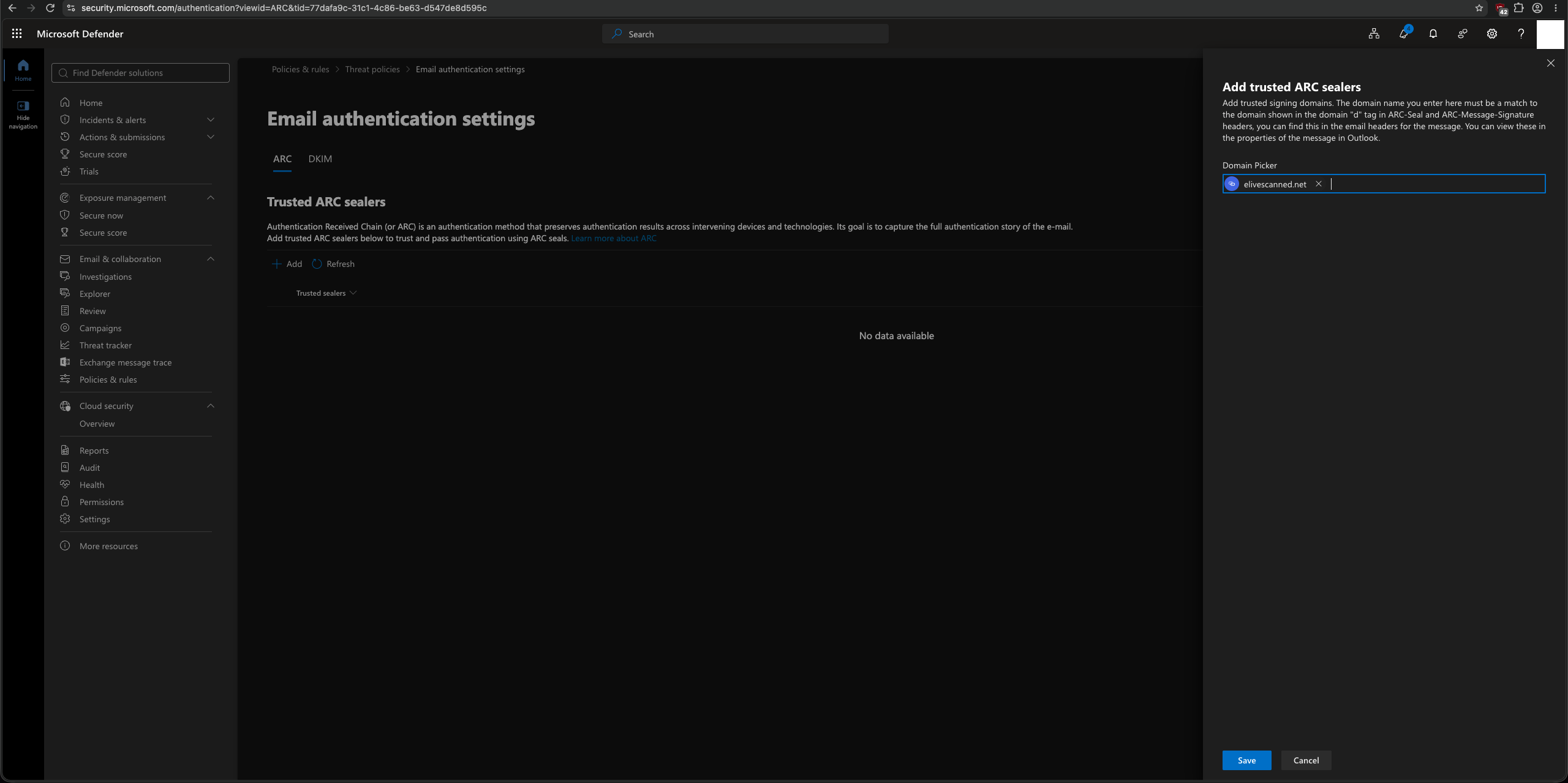
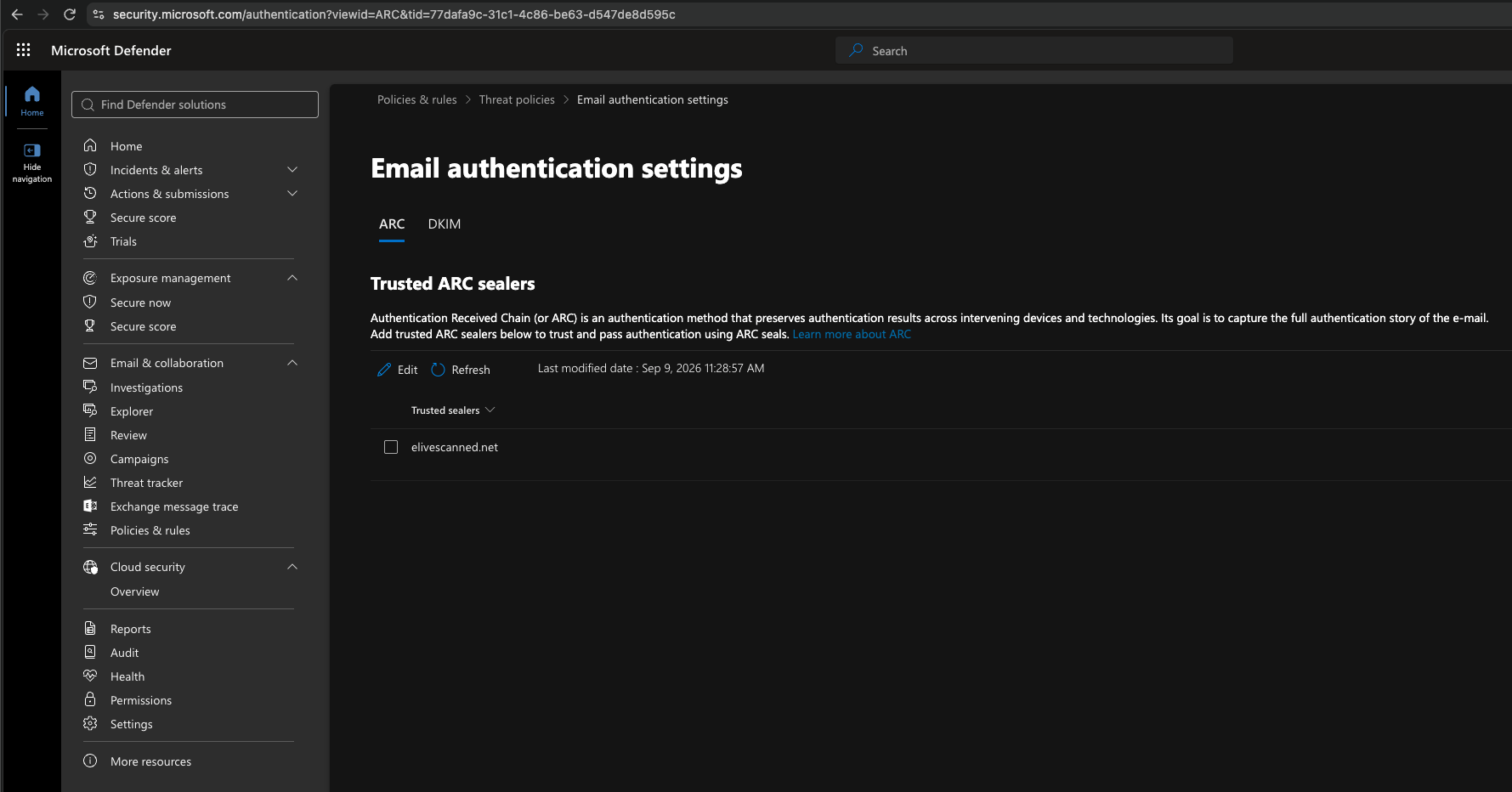
- Now enter in elivescanned.net into the box that appears on the right pane and hit enter to apply it, and then the Save button to save it.
- Finally, your screen should look like this, and if so, you're all set.
If you have any queries about this, you can open a support ticket to ask any of our staff.